



Facebook Stories have been a core part of the platform since their introduction in 2017, sitting prominently at the top of your news feed as a horizontal row of rectangular previews. While many users enjoy the feature for quick, disappearing updates, not everyone wants their feed cluttered by it. Whether you find the Stories bar distracting, overwhelming, or simply unnecessary, you are far from alone. Thousands of Facebook users actively search for ways to hide, mute, or disable Stories on Facebook every single day.
So, how do you actually disable Stories on Facebook? Facebook does not currently offer a single native toggle to completely remove the Stories bar from your feed. However, there are multiple effective methods to hide, mute, and control Facebook Stories both from your end and from others. These workarounds give you full control over what appears at the top of your news feed. Each method serves a different purpose, and knowing which one fits your needs makes all the difference.

This step-by-step guide walks you through every available method for turning off Facebook Stories on mobile, and desktop. We cover how to mute specific people’s Stories, how to hide Stories from your feed entirely, and how to control who sees your own Stories.
Why people want to disable Facebook Stories
According to reports from Facebook itself, over 500 million people use Facebook Stories daily. This means the volume of Story content generated every single day is staggering. With that volume comes a natural desire to filter it out.
Here are the most common reasons users want to disable or hide Facebook Stories:
1. Feed overload
Facebook Stories sit at the very top of your news feed instead of being buried in chronological posts. Because of this prime placement, they can quickly fill up with updates from friends, pages, influencers, brands, and advertisers. For users who simply want a clean, post-focused feed showing meaningful status updates, photos, or linked articles, the constant row of thumbnails can feel cluttered and overwhelming. Having to scroll past dozens of circles before reaching one that catches your interest makes the experience feel noisy rather than streamlined.
2. Distraction and focus
Many people, especially students and professionals, find Stories distracting because they are designed to be eye-catching and encourage rapid consumption. Stories autoplay short videos, include bright stickers, gifs, and calls-to-action all of which are engineered to grab attention and keep users tapping through. This can make it harder to focus on deeper posts or tasks outside of Facebook. Some users intentionally hide or mute Stories because they feel it helps reduce mindless scrolling and supports a more intentional, focused approach to using the app.
3. Privacy concerns
While Stories only last 24 hours, they still raise privacy issues for users who don’t want certain people seeing what they share. Facebook lets you restrict who can view your Stories, but this requires manually adjusting settings and isn’t always clear or intuitive. Because Stories disappear quickly, many people worry that they give a false sense of privacy as someone could screenshot or record content before it vanishes. Feeling like you don’t fully control who sees your updates pushes some users to hide Stories entirely or avoid posting them at all.
4. Mental health and digital wellbeing
Constant exposure to Stories can contribute to unhealthy social comparison and stress. The ephemeral nature with new updates appearing constantly fuels “fear of missing out” (FOMO), where users feel they have to check content frequently or risk missing something important. This cycle of checking and comparing can lead to anxiety, reduced self-esteem, and distraction from real-life activities. People who are concerned about their mental wellbeing often choose to hide Stories or mute notifications to create healthier boundaries with their use of Facebook.
5. Unwanted Ad content
Platforms like Facebook and Instagram don’t just show Stories from people you follow, they also display sponsored Stories from advertisers. These paid promotions can feel intrusive because they blend in with organic content and appear at the same spot where friends’ content should be. Research shows that users are exposed to hundreds of ads weekly, and many report feeling overwhelmed by the volume of promotional material. People who are trying to avoid ad-heavy feeds often seek ways to reduce or eliminate Stories because they don’t want to see commercial content mixed in with personal updates.
Can I completely disable Stories on Facebook from my feed?
No, you can’t completely disable Facebook Stories from your News Feed. Facebook does not currently provide a built-in option to permanently remove or disable Stories from appearing at the top of your feed. Stories are a core engagement feature, and Meta designs the feed so they remain visible by default for all users.
How to disable Stories on Facebook
How to disable Stories on Facebook is a question many users ask as they try to regain control over their News Feed. While Facebook doesn’t offer a one-click option to turn Stories off completely, there are practical ways to hide, mute, and reduce them for a cleaner, more focused experience.
1. Method 1: Mute Stories from specific people or pages (mobile)
This is the quickest way to stop seeing Stories from a particular friend or Facebook Page without unfriending or unfollowing them. Muting someone’s Stories only affects their Stories and their regular posts will still appear in your feed.
To do this, follow these steps for both iPhone and Android devices:
- Open the Facebook app on your device.
- Scroll to the Stories bar at the top of your news feed.

- Find the Story from the person or Page you want to mute.
- Press and hold (long-press) on that Story for two seconds.
- A pop-up menu will appear with options.
- Tap “Mute [Person’s Name]” to stop seeing their Stories.

- Select the duration you wish to mute the person’s story.

- Tap ‘Mute’ to confirm.
That person’s Stories will immediately disappear from your Stories bar. Their regular posts remain visible. You will not be notified, and they will have no way of knowing you muted their Stories.
Alternative: mute from their Story
- Navigate to the person’s story and click on it to open it.
- At the top right corner of the screen, click on the three dots (⋯).

- From the pop up page, select “Mute [The persons names] Stories.”

- Select the duration you wish to mute the person’s story.

- Tap ‘Mute’ to confirm.
2. Method 2: Mute Stories from specific people or pages (Desktop)
The desktop process is slightly different but achieves the same result. This method works on Facebook’s web browser version on any computer.
- Log into facebook.com on your browser.
- At the top of your news feed, click “See All” under the Stories section.
- Locate the Story you want to mute on the left-side panel.
- Hover over that Story and click the three dots (⋯) that appear.
- Select “Mute” from the dropdown menu.
- Confirm your selection.
3. Method 3: Hide your own Stories from specific friends
If your goal is not to stop seeing other people’s Stories but to stop specific people from seeing yours, Facebook provides a dedicated privacy control for this. This setting lets you exclude certain individuals without blocking or unfriending them.
Whether you mute, hide, or adjust your Story privacy settings, no one on the other end receives any notification. This makes all these methods completely discreet.
Mobile:
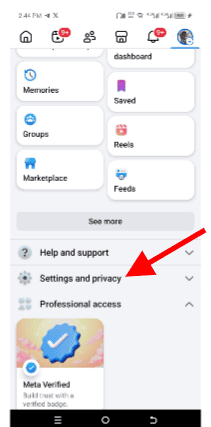
- Open the Facebook app and tap the hamburger menu (three horizontal lines) at the top far-right corner of the screen.
- Tap “Settings & Privacy.”
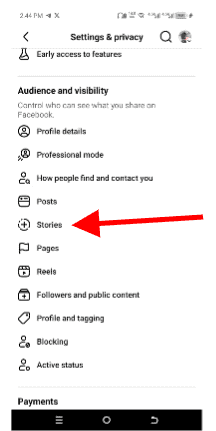
- Scroll down to the “Audience and Visibility” section.
- Tap “Stories.”
- Tap “who can see your stories”
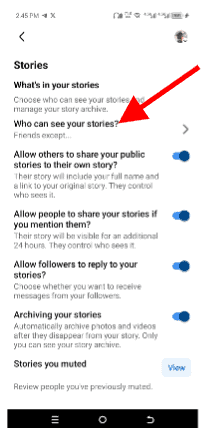
- Under “Who Can See Your Stories,” choose one of the following:
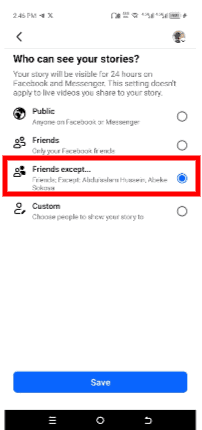
- Public – Anyone on Facebook can see your Stories.
- Friends – Only your approved Facebook friends can see them.
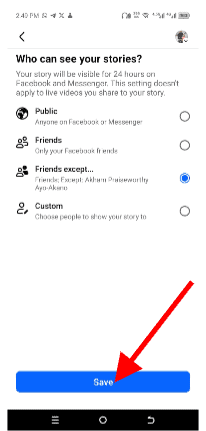
- Friends Except… – Visible to all friends except specific people you name.
- Only Me – Completely private; no one else can view your Stories.
- Select “Friends Except…”
- Type in the names of friends or Pages you want to hide your Stories from.
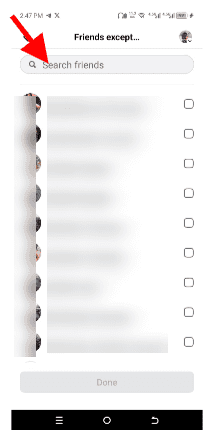
- Once selected, a blue check mark will appear in front of the name.
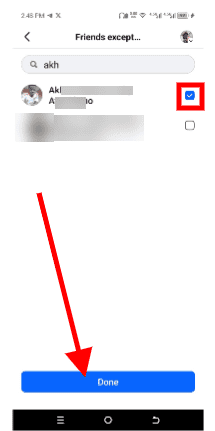
- Tap “Done” to apply.
- Then click on “Save” to complete the process.


Desktop
- Click the down arrow in the top-right corner of Facebook.
- Select “Settings & Privacy” then “Settings.”
- Navigate to “Audience and Visibility” then “Stories.”
- Click “Hide Story From” and add the names of people you want to exclude.
- Click “Save.”
Setting your audience to “Only Me” is the closest you can get to fully disabling your own Stories without deleting them. Changes you make to Story privacy do not retroactively affect Stories you have already posted. To update visibility on an existing Story, you must delete it and repost with the new settings.
Method 4: Use third-party apps to remove the Stories bar entirely
Facebook doesn’t plan to let you remove the Stories bar natively, but third-party Facebook client apps offer a workaround that does exactly that. According to Gadget Hacks, two apps stand out for this purpose:
For iPhone: Friendly for Facebook
- Download Friendly for Facebook from the Apple App Store.
- Open the app and log in with your Facebook credentials.
- Tap the gear icon in the upper-right corner.
- Select “Filters.”
- Enable the toggle next to “Hide Stories.”
- Stories will no longer appear anywhere in your feed.
For Android: Swipe for Facebook
- Download Swipe for Facebook from Google Play.
- Open the app and sign in with your Facebook account.
- Tap the three vertical dots in the upper-right corner.
- Select “Settings.”
- Enable the toggle next to “Hide Facebook Stories.”
- Your feed is now completely Stories-free.
It’s important to note that these are third-party apps, not official Facebook products. Always review their privacy policies before granting them access to your Facebook account. Both apps use significantly fewer resources than the official Facebook app and offer additional customization features worth exploring.
How to unmute previously muted Stories
After muting someone’s Story on Facebook, you can change your mind and wish to view their Stories again. Facebook makes this straightforward. Unmuting is a simple process that requires straight steps depending on the platform used.
Mobile
- Open the Facebook app.
- Tap the hamburger menu and click on “Settings & Privacy” then “Settings.”
- Tap “Stories” under Audience and Visibility.
- Tap “View” next to “Stories You’ve Muted.”
- Find the person or Page and tap “Unmute.”
Desktop
- Click your profile picture and “Settings & Privacy” then “Settings.”
- Click “Feed” in the left panel.
- Under “Reconnect,” find the person you muted.
- Click the plus (+) button next to their name to unmute them.
Final thoughts
Controlling your Facebook Stories experience does not have to be complicated. While Facebook does not offer a single off-switch for the Stories feature, the combination of muting, privacy settings, and third-party apps gives you more than enough control to customize your feed exactly the way you want it.
If you simply want to stop seeing a few people’s Stories, muting is your fastest and cleanest option. If you want to control who sees your own content, the privacy settings under Audience and Visibility put that power directly in your hands. The key takeaway is this: you have options. Facebook may not make it obvious, but the tools to manage, hide, mute, and disable Stories are there, you just need to know where to look.