

Knowing your audience on Facebook is foundational to understanding who is engaging with your content, who is invested in your brand, and how your online presence is growing. Yet many Facebook users, even experienced ones, are not entirely sure how to access this information. Facebook’s interface changes frequently, settings are buried under multiple menus, and the difference between “friends,” “followers,” and “following” is something the platform does not always explain clearly. That confusion leaves a lot of useful data sitting undiscovered.
For serious creators, learning how to check who follows your Facebook page or profile requires knowing a few important distinctions first. On Facebook, a follower is someone who has chosen to see your public updates in their News Feed without necessarily being your friend. When you befriend someone on Facebook, they are automatically added as a follower. But someone can follow you without being your friend, which is especially common for public figures, creators, and businesses.

In this post, we’ll cover every method for checking your Facebook followers for personal profiles, Facebook Pages, and business accounts. Beyond just locating the list, you will also learn how to enable followers on your profile, manage your follower privacy settings, understand what Page follower data looks like in Meta Business Suite, and what to do when the Followers tab is not showing up.
Facebook friends vs. followers vs. following: The key differences
While the three distinctions often represent people online that connect with you in one way or the other, they are different. Creators must first understand these three terms to save a lot of confusion:
- Friends: A mutual connection. Both people agreed to connect. Friends can see each other’s posts based on privacy settings.
- Followers: People who see your public posts in their News Feed. They do not need to be your friend. When you accept a friend request, that person also becomes a follower automatically.
- Following: Accounts you have chosen to follow such as pages, profiles, and groups whose public updates appear in your feed. Following someone does not make you their friend, and they do not follow you back automatically.
From the above, your follower list may include people who are not in your friends list at all. That is entirely normal especially if you post publicly or run a Facebook Page.
How to check who follows your Facebook page or profile
Knowing who follows your Facebook profile or page helps you understand your audience better. You can check your followers through the Followers section on your profile, the Friends and Followers settings, or the Professional dashboard if you use professional mode. For Facebook Pages, admins can view followers through the Page settings and audience insights. These options make it easy to see who is interested in your content and how your audience is growing.
Method 1: Check who follows your personal profile on desktop
This is the most direct method for personal Facebook accounts. However, this only works if your profile is set to Public and your follower settings allow non-friends to follow you.
- Open your browser and go to facebook.com. Log in.
- Click your profile picture or name in the top-left corner to go to your profile.
- Below your cover photo, you will see the number of people following you.
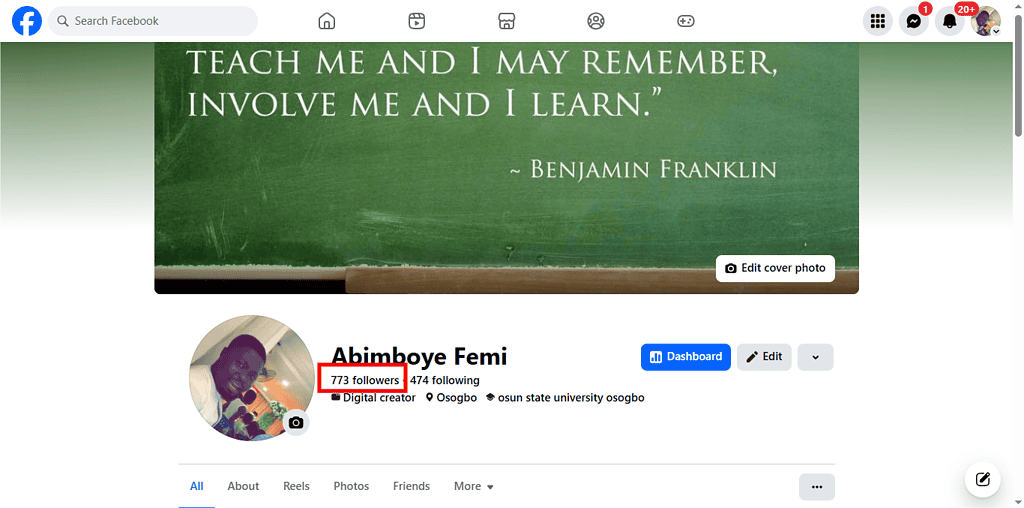
- Click on it to see a full list of people who follow your profile.
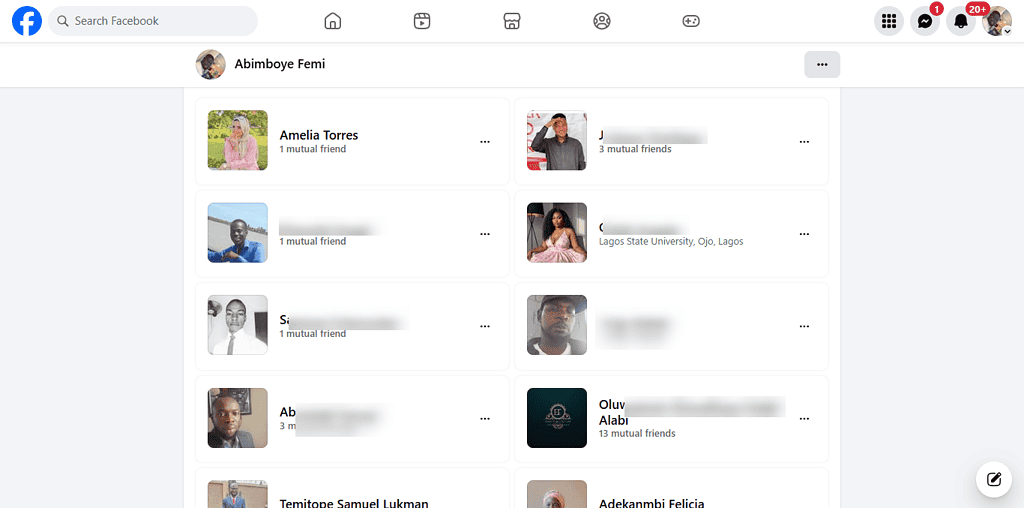


If you do not see a “Followers” tab, it means either your follower settings are restricted to “Friends Only,” or your profile is currently locked. Both cases are covered in the settings section below.
Method 2: Check who follows your personal profile on mobile (App)
Facebook’s mobile app handles this slightly differently depending on whether you are using Android or iOS, but the process is the same for both:
- Open the Facebook app and tap your profile picture in the top-right corner.
- Tap the profile image at the top of the screen again to navigate to your profile page.
- Just below the header image and your profile name, you will see your followers count.
- Click on ‘Followers’ to show the persons following your profile.
- Tap “See All” to view your complete followers list.
If the Followers section does not appear in your About Info, your follower privacy setting is likely restricted to friends only.
Method 3: Check who follows your personal profile via Activity Log (Mobile)
This method works on mobile and gives you access to both your followers list and a history of people who have followed and unfollowed you:
- Open the Facebook app and go to your profile by tapping your profile picture.
- Tap the three dots (•••) at the top right corner of the screen.
- Select “Activity Log” from the menu.
- Tap “Connections” to expand that section.
- Select “Followers” to see a list of people who follow you.
- To see who you have followed and unfollowed over time, select “Who you’ve followed and unfollowed.”
This Activity Log method is particularly useful if you want a historical record rather than just a current snapshot.
Method 4: Check who follows your Facebook page (Desktop)
Facebook Page administrators have a slightly different path and more detailed data compared to personal profile users. To check followers of a page on a desktop, follow these steps:
Option A: Via the Community section
- Go to your Facebook Page.
- Click your profile picture or name in the top-left corner to go to your profile.
- Below your cover photo, you will see the number of followers you have on the page.
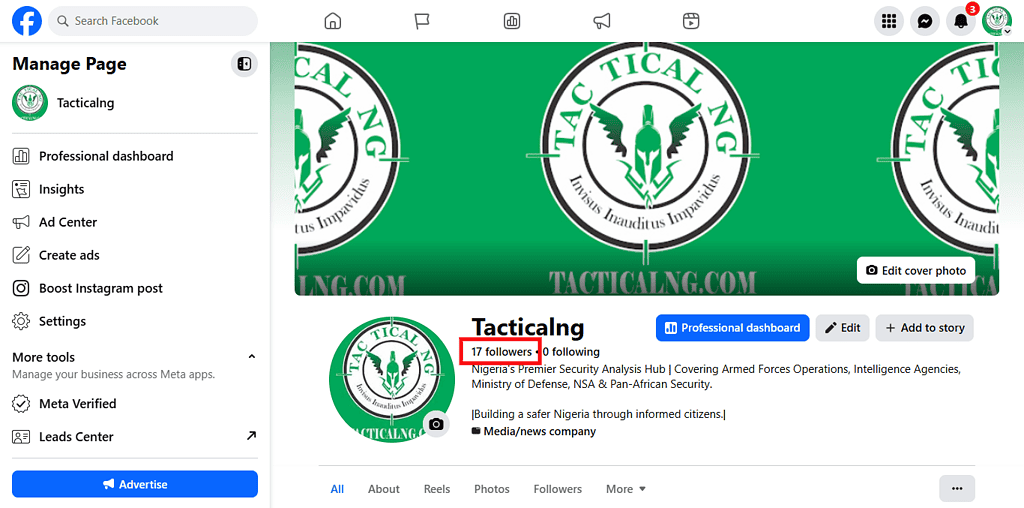
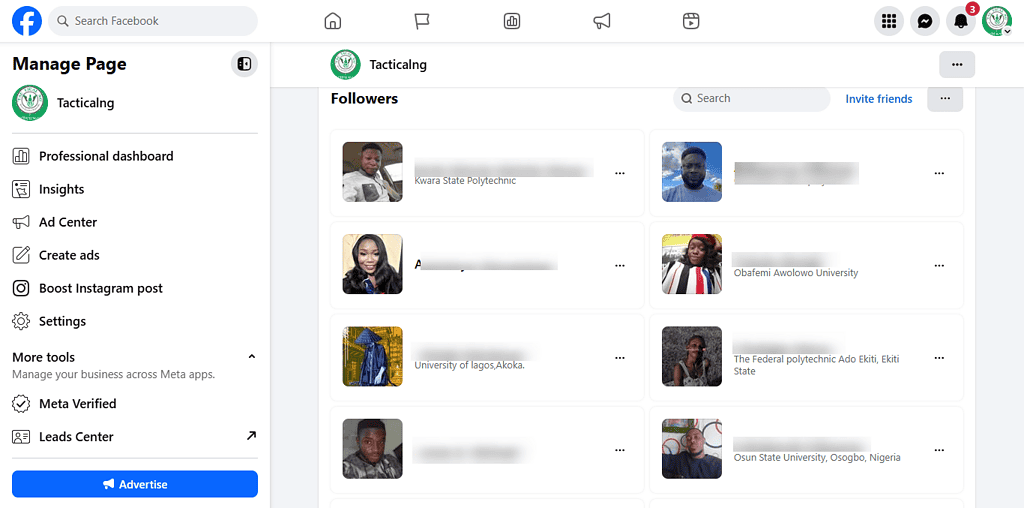
- To view names and details of followers, click on the ‘followers’ button.


Option B: Via Meta Business Suite
- From your Page, click “Insights” in the left-hand navigation menu.
- Click “People” or “Audience” from the Insights menu.
- You will see follower demographics including age, gender, location, and language breakdown.
Option C: Named Follower List via Mobile
- Open the Facebook app and navigate to your Page.
- Click on the menu button represented by the hamburger icon at the top right corner of the page.
- Tap the Settings icon (gear icon) in the top-right corner of the Page.
- Scroll down and tap “People and Other Pages.”
- Select “People Who Follow This Page.”
- You will see a list of followers.
Method 5: Check who follows your Facebook page (Meta Business Suite)
If you manage your Page through Meta Business Suite, follower insights are more detailed:
- Log in to Meta Business Suite at business.facebook.com.
- In the left sidebar, click “Insights.”
- Select “Audience” from the Insights menu.
- Here you can see total follower count, follower growth trends, and demographic breakdowns including location, age, and gender.
Meta Business Suite is the most comprehensive tool for understanding your Facebook Page audience. Its especially useful for businesses running campaigns and tracking audience growth over time.
How to enable Followers on your personal profile
By default, only your friends can follow your personal Facebook profile. To allow non-friends to follow you which is essential for creators, public figures, and anyone building a personal brand you need to change one setting.
On desktop:
- Click your profile picture and go to Settings & Privacy → Settings.
- In the left menu, click “Privacy.”
- Click “Public Posts” from the left navigation panel.
- Next to “Who Can Follow Me,” click the button and select “Public.”
On mobile:
- Open the Facebook app and tap your profile picture in the top-right corner.
- Tap the Settings button (gear icon) at the top.
- Scroll down to “Audience and Visibility.”
- Tap “Followers and Public Content.”
- Under “Who Can Follow Me,” select “Public.”
Once this is set to Public, anyone on Facebook can follow your profile and see your public posts in their News Feed without sending a friend request.
How to manage your Facebook followers
If someone is following your personal profile and you want to remove them, Facebook does not have a direct “remove follower” button. Your options are:
1. Block the follower from your profile
Blocking someone is the most direct way to remove a follower. When you block a person, they are automatically removed from your followers list and cannot follow or interact with your profile again unless you unblock them later.
Steps:
- Open Facebook and go to the person’s profile page.
- Click or tap the three dots (…) on their profile.
- Select Block from the menu.
- Confirm your choice when Facebook asks for confirmation.
- The person will immediately be removed as a follower and will no longer see your posts.
2. Change your Follower setting to “Friends Only”
If you want to stop people who are not your friends from following you, you can change your follower settings. This option prevents strangers from following your public posts and ensures that only your approved friends can see updates in their feed.
Steps:
- Open Facebook Settings.
- Go to Privacy or Followers and Public Content.
- Find the option labeled Who Can Follow Me.
- Change the setting from Public to Friends.
- After changing this setting, only people on your friends list will be able to follow your posts.
3. Ban users from a Facebook page
If you manage a Facebook Page, you cannot block followers the same way as personal profiles. Instead, page admins can ban users, which prevents them from following, commenting, or interacting with the page.
Steps:
- Go to your Facebook Page.
- Click Settings.
- Select People and Other Pages.
- Choose People Who Follow This Page.
- Find the person you want to remove.
- Click the three dots (…) next to their name.
- Select Ban from Page.
Once banned, the user will no longer be able to follow or interact with your page.
FAQ
Does Facebook notify you when someone follows or unfollows you?
Unlike Instagram, there is no “new follower” notification for profile follows. For Pages, follower count changes are visible in Insights, but not tied to individual users.
Can i see private profiles on my Facebook Page follower lists?
When you view “People Who Follow This Page” on mobile, only users with public profiles appear. Private account holders who follow your Page are counted in your total but not individually visible.
Does Facebook show who unfollowed me?
There is no native unfollow tracker. Your Activity Log can show follower history, but it only shows your own following activity not other people’s actions toward your profile.
Wrapping up
Checking who follows your Facebook profile or Page is straightforward once you know where to look. However, Facebook’s layered menus and frequent interface updates make it easy to get lost. The key distinction to remember is that personal profiles and Pages have different paths and different levels of follower visibility. For the most current and authoritative guidance on Facebook follower settings, Facebook’s own Help Centre is always the most reliable reference.