

Managing content on YouTube used to mean juggling multiple Google accounts, switching logins constantly, and keeping track of separate passwords for each channel. For creators, businesses, and marketers running content in multiple niches, languages, or formats, that workflow was a headache with no obvious solution. Today, YouTube offers a cleaner, more professional solution on how to create multiple YouTube channels on one account and most users do not know it exists.
You can create multiple YouTube channels on one account using a feature called Brand Accounts. YouTube’s own documentation confirms that a single Google account can manage up to 100 YouTube channels without needing a separate email for each one. Each channel operates independently with its own name, subscribers, content, and analytics but all accessible through a single Google login.
This guide is built for creators who want to expand beyond a single channel, businesses managing multiple content verticals, and marketers handling YouTube for different clients or brands. You will get a step-by-step walkthrough for creating a new channel on desktop and mobile, a clear explanation of Brand Accounts versus personal channels, how to switch between multiple channels seamlessly, how to add managers without sharing your login credentials, and practical strategies for managing multiple channels without burning out.
Can I create multiple YouTube accounts on one account?
Yes, you can create multiple YouTube accounts using one Google account. YouTube allows you to run multiple channels under one account using Brand Channels. A single Google or email account allows you to set up and control as many as 100 YouTube channels. It’s the easiest way to manage different content without juggling multiple logins.
YouTube account types: Personal channel vs. Brand account
Before creating a second channel, understanding this difference is essential. It determines how your channels are structured, who can access them, and how much flexibility you have.

A personal YouTube channel is the default channel created when you first set up a Google account. It is directly tied to your Gmail address and personal identity. Only you can log in and manage it. You cannot assign managers or editors without sharing your personal Google login which is a significant security risk. If something happens to your Google account, this channel goes with it.
A Brand account is YouTube’s solution for creators and businesses who need flexibility. Unlike a personal channel, a Brand Account can be managed by multiple people with different permission levels without any of them needing access to your primary Google login. Brand Accounts are the foundation for every additional channel you create beyond your first. They are also the recommended channel type for businesses and professional creators for this reason.
How to create a new YouTube channel on desktop
This is the most straightforward method and takes under five minutes:
- Open your browser and go to youtube.com. Sign in with your Google account.
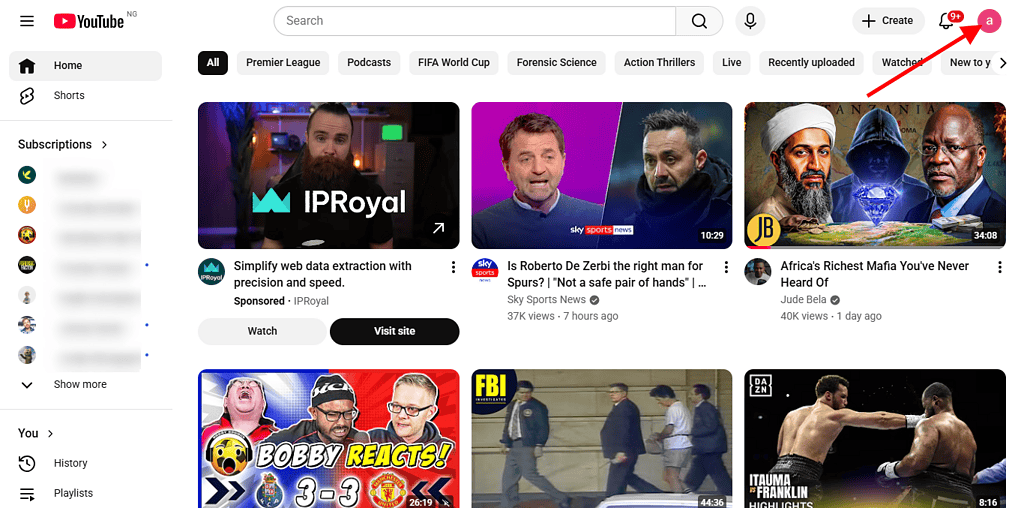
- Click your profile picture in the top-right corner of the screen.
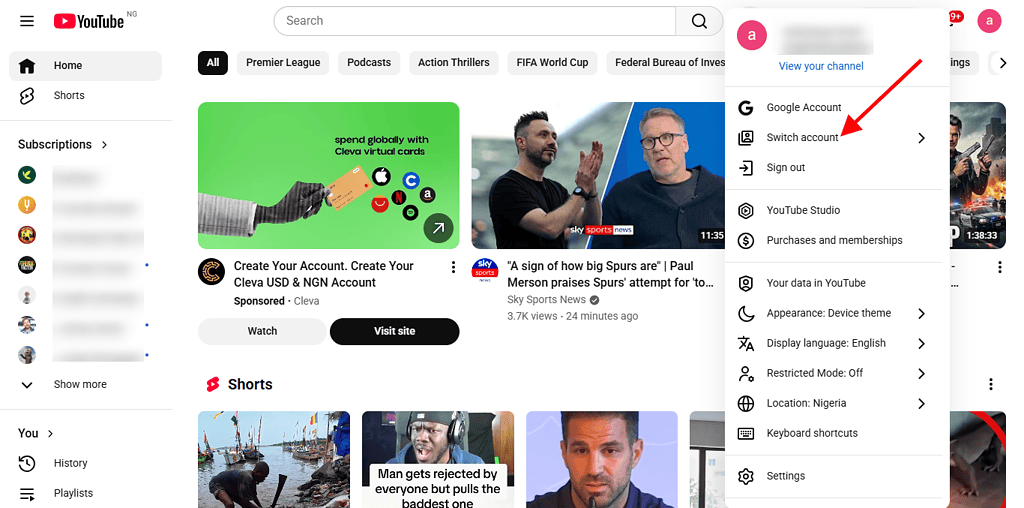
- From the dropdown menu, click “Switch account.”
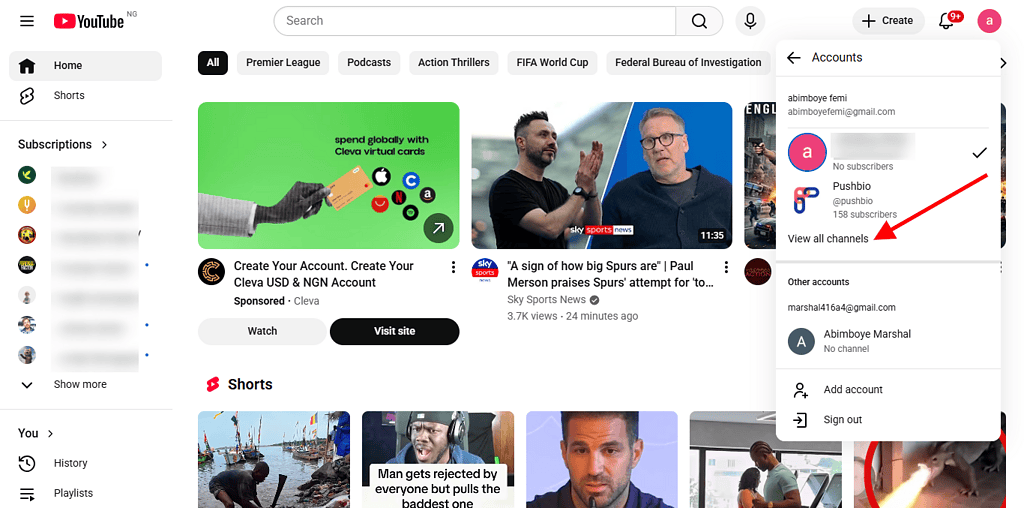
- Click on “View all channels.”
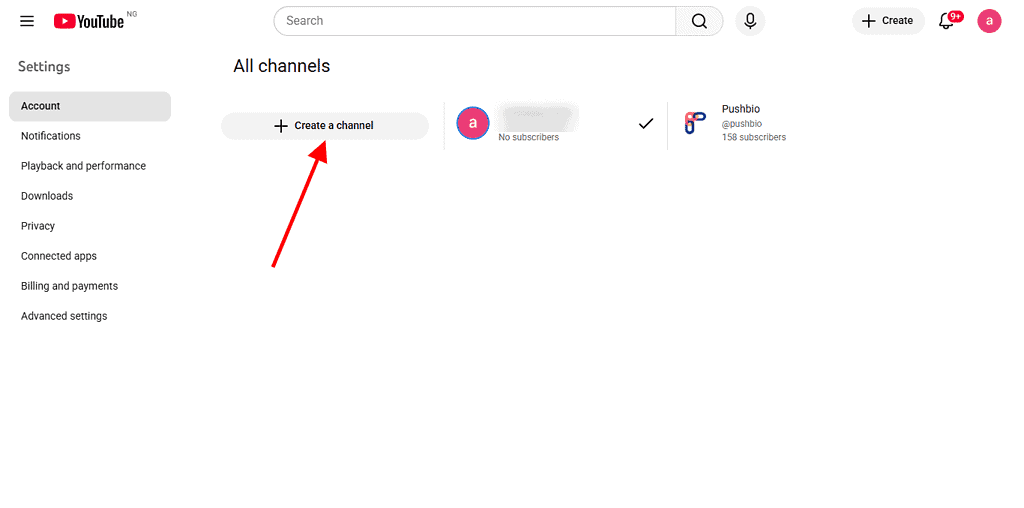
- Next, click on “Create channel” to start a new channel under the same google account.
- A prompt will appear asking you to enter a channel name. Choose a name that reflects the channel’s purpose.
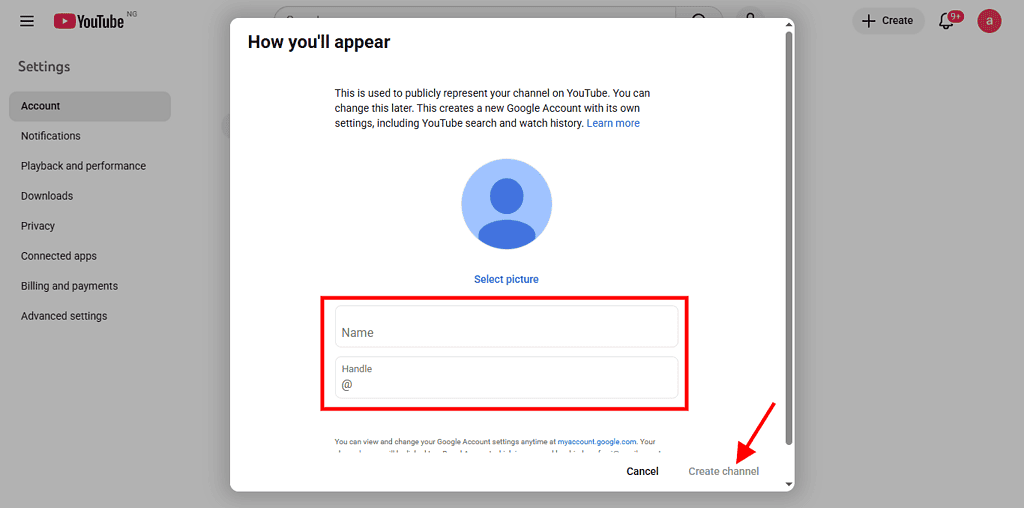
- Fill the required details to turn on the “create channel” button.
- Click “Create Channel.”
- After creating, your new channel will be added to the list of channels under your Google account.
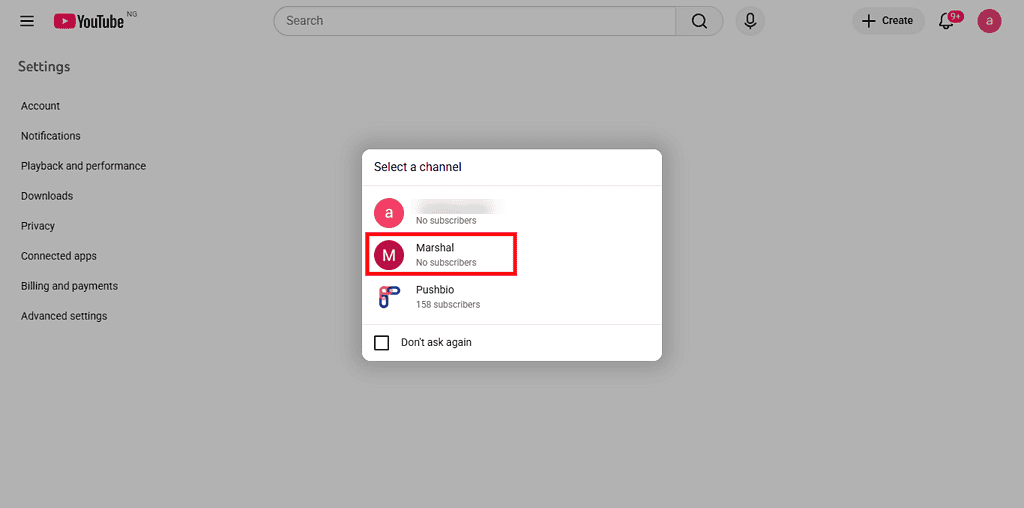


Your new channel is now live. You will be automatically directed to YouTube Studio for the new channel, where you can customize the profile, add channel art, write a description, and begin uploading content.
After creating the channel, go to YouTube Studio, customization, basic info and complete all fields such as channel name, handle, description, and links. A complete profile helps YouTube’s algorithm categorize your content accurately from day one.
How to create a new YouTube channel on mobile
The mobile process is slightly different depending on whether you are using Android or iOS, but the path is the same:
- Open the YouTube app on your phone and tap your profile picture in the top-right corner.
- Tap your current channel name at the top of the menu.
- A list of your channels will appear. Scroll to the bottom and tap “Create a new channel.”
- Enter a name for the new channel.
- Tap “Create Channel.”
The channel is created immediately. From mobile, you can manage basic settings directly in the YouTube app. For more advanced configuration like uploading, analytics, and monetization setup, use YouTube Studio on desktop for the best experience.
How to switch between multiple YouTube channels
Once you have two or more channels, switching between them is quick:
On desktop:
- Click your profile picture in the top-right corner of YouTube.
- You will see your channels listed. Click the channel you want to switch to.
- You are now operating as that channel any uploads, comments, or interactions will come from it.
On mobile:
- Tap your profile picture in the top-right.
- Tap your current channel name at the top of the panel.
- Select the channel you want to switch to from the list.
YouTube remembers which channel you were last using and defaults to it on your next visit. Always confirm which channel is active before uploading as it is easy to accidentally post to the wrong channel.
How to view all your YouTube channels in one place
If you want to see a full overview of every channel associated with your Google account:
- Go to your Google Account page at myaccount.google.com.
- Click “Data & Privacy” in the left navigation.
- Scroll to “Your activity and timeline” and click “YouTube.”
- You will see all channels linked to your Google account.
Alternatively, from YouTube itself, click your profile picture and select “Switch account,” every channel connected to your Google account will be listed there.
How to add Managers to a YouTube channel
This is one of the most underused features for agencies and businesses. Brand Account channels allow you to add up to 50 managers or owners with different permission levels. This means you can add collaborators, editors, or social media managers to access the channel using their own Google accounts.
Permission levels:
- Owner: Full access, same as the primary account holder. Can delete the channel, manage payments, and add or remove managers.
- Manager: Can upload videos, edit settings, manage comments, and access analytics. Cannot delete the channel or manage financial settings.
- Communications Manager: Can respond to comments and reviews. Cannot upload content or access full settings.
How to add a manager:
- Sign in to YouTube and switch to the channel you want to manage.
- Click your profile picture and then “Settings.”
- Under “Your channel,” click “Add or remove managers.”
- Click “Manage permissions.”
- Click the person icon with a + sign to invite a new person.
- Enter their Gmail address and select their permission level.
- Click “Invite.”
The invited person will receive an email and can accept the invitation to start managing the channel from their own Google account with no shared passwords required.
Should you create multiple channels or use playlists?
Not every content expansion needs a new channel and not every content works well with a playlist on YouTube. Here is a practical framework:
Create a new channel when:
- Your content serves distinctly different audiences with different interests (e.g., a kids’ channel vs. a finance channel)
- You are creating content in a different language and want a fully localized experience for that audience
- You need a separate brand identity for a business, product line, or client
- You want to experiment with a different content format (Shorts-only, live streaming, educational series) without affecting your main channel’s algorithmic profile
Stick with playlists when:
- Your content is in the same niche but organized by sub-topic
- Your audience is broadly the same across all content types
- You are not yet producing enough content to sustain a second channel consistently
- You want to keep all content under one subscriber count and community
YouTube’s algorithm rewards channels that have a clear, consistent niche. Splitting content unnecessarily especially before you have the production capacity to maintain both channels can dilute your growth rather than accelerate it.
How to manage multiple YouTube channels
Managing more than one YouTube channel can increase your reach and income potential, but it also requires structure and discipline. Without a clear system, it is easy to become overwhelmed. The strategies below will help you stay organized, maintain consistency, and grow each channel effectively based on proven creator practices:
1. Define clear content pillars for each channel
Every successful channel is built around a clear content direction. Creating specific content pillars such as tutorials, reviews, or updates, helps you stay focused and consistent. According to creator best practices, niche-focused channels tend to perform better because the algorithm can easily understand and recommend them to the right audience.
How to apply this:
- Choose 2–4 main content themes per channel
- Align topics with audience interests
- Avoid mixing unrelated content styles
When each channel has a defined purpose, it reduces confusion and helps viewers know what to expect. It also makes planning easier because you are not starting from scratch every time you create content.
2. Batch-produce and schedule your content
Creating videos in batches is one of the most effective ways to manage multiple channels. Instead of producing one video at a time, record several videos in a single session. This saves time and improves efficiency.
Steps to follow:
- Plan content weekly or monthly
- Record multiple videos in one session
- Use YouTube Studio to schedule posts
- Maintain a consistent publishing calendar
YouTube Studio allows creators to schedule videos in advance, which helps maintain a consistent posting routine, an important factor for audience retention and algorithm performance. Studies show that consistent upload schedules can improve viewer loyalty and engagement over time.
3. Use analytics to compare performance across channels
YouTube Studio provides detailed analytics for each channel, including watch time, click-through rate, and audience retention. Reviewing this data regularly helps you understand what type of content performs best.
What to track:
- Watch time and retention rates
- Click-through rate (CTR)
- Top-performing videos
- Audience demographics
Experts recommend analyzing performance every two weeks to spot trends early. This allows you to focus on high-performing formats and stop wasting time on content that does not resonate. Data-driven decisions are key to long-term growth on YouTube.
4. Delegate tasks using permission levels
As your channels grow, managing everything alone becomes difficult. YouTube allows you to assign different roles (like manager or editor) through Brand Account permissions. This makes it easier to share responsibilities without giving full control.
For example, many creators assign someone to handle comments and community engagement, especially on high-traffic channels. This ensures faster responses and better audience interaction, which can improve engagement signals.
Best practices:
- Assign roles based on strengths
- Use managers for moderation tasks
- Keep ownership access secure
- Monitor team activity regularly
5. Focus on what matters most
Not all channels need equal attention at the same time. Some may be in a growth phase, while others are stable and require less effort. Successful creators often prioritize channels that show the highest potential for growth or revenue.
How to prioritize effectively:
- Identify high-growth channels
- Allocate more time to top performers
- Maintain smaller channels with scheduled content
- Reassess priorities regularly
Spreading your time evenly across all channels can reduce overall performance. Instead, focus your energy where it will have the greatest impact, and maintain other channels with lighter effort.
FAQ
How many YouTube channels can you create on one account?
You can create up to 50 channels under one Google account in most cases, although some sources suggest the system may support more depending on usage. If you need more, you will have to create additional Google accounts.
Do multiple YouTube channels share subscribers or content?
No, each channel operates independently. They have separate:
- Subscribers
- Videos
- Analytics
- Branding
This allows you to target different audiences or niches without mixing content.
Can you monetize multiple YouTube channels on one account?
Yes, you can monetize multiple channels, but each one must meet YouTube Partner Program requirements individually (e.g., 1,000 subscribers and 4,000 watch hours). Once approved, all channels can be linked to the same AdSense account.
In the end
Creating multiple YouTube channels under one Google account is genuinely straightforward. A few clicks and your second or tenth channel is live. The real work is strategic: deciding whether a new channel is the right move, setting it up with Brand Account permissions for secure team management, and building a sustainable production workflow that keeps all channels active and growing.
YouTube supports up to 50 channels per account, but the most successful multi-channel creators do not chase that ceiling. As a creator or business, it’s better to build fewer, focused channels with clear audience identities and then scale those with intention.