

YouTube hosts over 800 million videos and adds 720,000 hours of new content every day. With that volume comes an inevitable reality: not every channel deserves a spot in your feed. Whether you’re tired of clickbait thumbnails flooding your recommendations, protecting children from inappropriate content, or simply trying to maintain focus by eliminating distractions, the need to control what you see on YouTube has never been more pressing. For parents, educators, and everyday users alike, managing YouTube’s endless stream of content feels like trying to drink from a fire hose, which can be overwhelming and often frustrating.
So, can you block YouTube channels? Yes, but with important caveats. YouTube offers several native methods to remove channels from your recommendations, hide specific users from your own channel, and block content for supervised children’s accounts. However, YouTube does not provide a traditional “global block” feature that completely removes a channel from your entire YouTube experience, the way blocking works on other social platforms.
In this guide, we will break down every method available for blocking YouTube channels, from YouTube’s native tools to browser extensions that offer complete blocking capabilities. We cover how to block channels on desktop, mobile, and YouTube Kids. By the end, you’ll know exactly how to take control of your YouTube experience regardless of which device you’re using.
Can you block YouTube channels?
Yes, you have the option to restrict a YouTube channel so they can no longer leave comments on your videos, and you can also limit how often their videos appear in your feed. Although you cannot remove a channel entirely from the platform, you can control your experience by choosing options like “Don’t recommend channel” or hiding the user from interacting with your content on both desktop and mobile. Additionally, if you manage a supervised account for a pre-teen, you can manually block certain channels to ensure a safer viewing experience.
Understanding the different restricted options on YouTube
YouTube’s official Help Center says you can use features like “Don’t recommend channel” to stop seeing content from specific creators in your feed, or use parental controls to block channels for children’s supervised experiences.
Understanding the difference between these options and knowing when to use each one is essential for actually controlling what appears on your screen. Here is a breakdown of YouTube’s “blocking” features and what they actually do and what they don’t.
“Don’t Recommend Channel”
This is YouTube’s most commonly used content control feature. According to YouTube’s official documentation, when you select “Don’t recommend channel,” YouTube stops showing videos from that channel in your recommendations and home feed. This applies across all your devices as long as you’re signed into the same Google account.
What it does:
- Removes the channel’s videos from your Home feed
- Stops recommendations on the Watch Next sidebar
- Reduces or eliminates suggestions from that creator
What it doesn’t do:
- Block the channel from appearing in search results
- Prevents you from visiting the channel if you search for it directly
- Stop the channel from commenting on public videos (unless you own those videos)
- Notify the channel owner that you’ve hidden them
“Hide User from My Channel”
If you run your own YouTube channel, you have a different blocking option. Hiding a user prevents that specific account from:
- Commenting on your videos
- Interacting with your community posts
- Appearing in your channel’s comment sections
This is a moderation tool, not a viewer-side content filter. It only affects your channel’s community space.
“Block Channel for Kids”
For supervised children’s accounts, YouTube provides the most robust blocking capability. According to YouTube’s Family Center documentation, parents with linked accounts can completely block specific channels from appearing for their children on both YouTube and YouTube Kids. This is the closest thing to a true “block” that YouTube offers.
How to block a YouTube channel using “Don’t Recommend Channel.”
This is the fastest method for most users who simply want to clean up their feed.
On desktop
- Open YouTube.com and sign in to your account.
- Navigate to your Home feed.
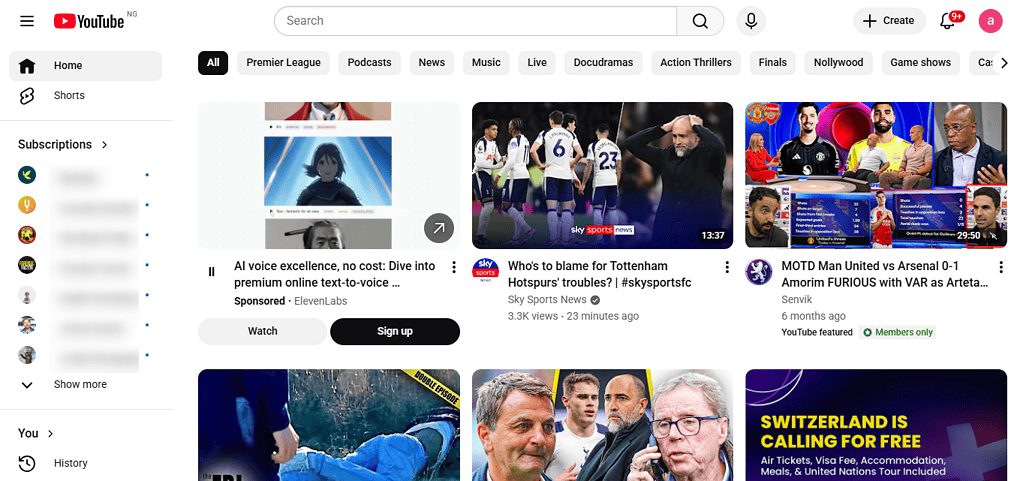
- Find a video from the channel you want to block.
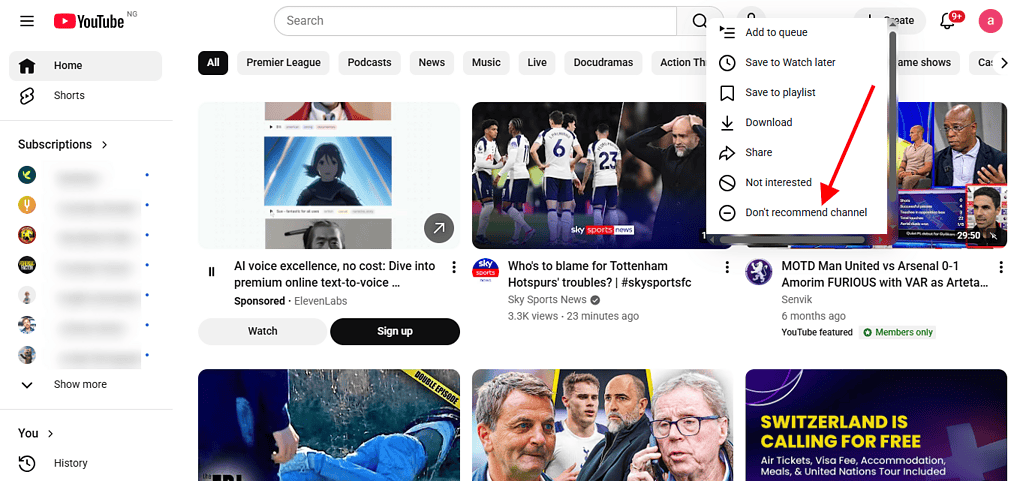
- Click the three vertical dots (⋮) next to the video title.
- Select “Don’t recommend channel” from the dropdown menu.
- A small “Undo” button appears briefly. If you clicked by mistake, click Undo immediately. Otherwise, the action is confirmed.
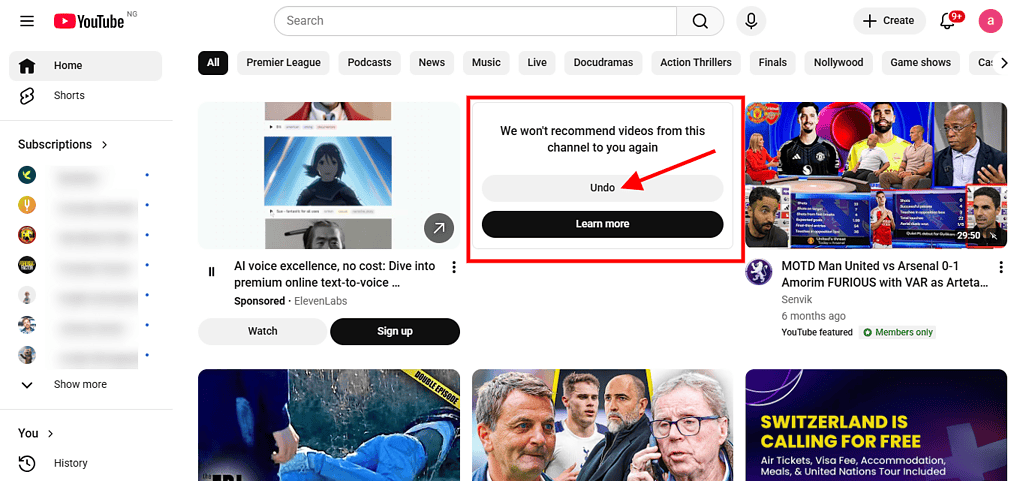


This method works across your entire Google account. If you block a channel on desktop, it’s automatically hidden on mobile as well.
On Mobile (iPhone and Android)
- Open the YouTube app and sign in.
- Go to your Home feed.
- Find a video from the channel you want to block.
- Tap the three vertical dots (⋮) next to the video.
- Tap “Don’t recommend channel.”
- YouTube confirms the action. The channel’s content will stop appearing in your recommendations.
According to YouTube Help, you can also choose “Not interested” for individual videos. This tells YouTube to show you fewer videos like that one, but doesn’t block the entire channel.
How to hide a user from your own channel
If you run a YouTube channel and want to prevent specific users from interacting with your content, follow these steps.
On desktop
- Go to the comment or mention from the user you want to block.
- Click the three dots (⋮) next to their comment.
- Select “Hide user from my channel.”
- Confirm the action.
On mobile
- Open the YouTube app.
- Tap Notifications in the top-right corner.
- Tap Mentions to see mentions of your channel.
- Next to the mention from the user you want to block, tap More (⋮).
- Tap “Block this user.”
- A pop-up appears. Tap Block to confirm.
According to YouTube’s Android Help documentation, when you block someone on YouTube this way, their account is also blocked across other Google products linked to the same Google account.
How to block channels for children (Parental Controls)
For parents managing supervised accounts for children, YouTube offers the most powerful blocking tools.
Prerequisites
- You must have a linked parent account set up through Family Link
- Your child must have ‘supervised experience’ enabled on their YouTube account
Steps to block a channel for kids (Desktop)
- Sign in to YouTube using your linked parent account (not your child’s account).
- Navigate to the channel page you want to block.
- Click the About tab on the channel.
- Click “Report user.”
- Select “Block channel for kids.” (This option only appears if you’re using your linked parent account.)
- A pop-up may warn you that similar videos might still appear on other channels. Click “CONTINUE.”
- Click “BLOCK” next to the child you want to block this channel for.
- The button changes to “UNBLOCK,” giving you immediate undo capability.
- Click “DONE” to finalize.
Steps to block a channel for kids (Mobile)
- Open the YouTube app and sign in with your linked parent account.
- Go to the channel page you want to block.
- Tap “Block channel for kids.” (This option only surfaces if you’re using your linked parent account.)
- Tap “CONTINUE” if a pop-up appears.
- Tap “BLOCK” next to your child’s name.
- Tap “DONE.”
If your child uses the same Google Account for both YouTube and YouTube Kids, blocking a channel on YouTube automatically blocks it on YouTube Kids as well.
However, according to YouTube’s official documentation, blocking a channel only blocks content uploaded to that specific channel. It does not block:
- Videos reuploaded on other channels
- Similar channels with related content
- Content from other creators covering the same topics
Alternative method: YouTube’s Restricted Mode
Restricted Mode is a feature that filters out mature content across YouTube. While it doesn’t block specific channels, it provides broad content filtering.
How to Enable Restricted Mode
On Mobile:
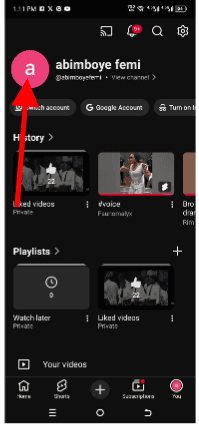
- Tap your profile picture in the bottom-right corner.
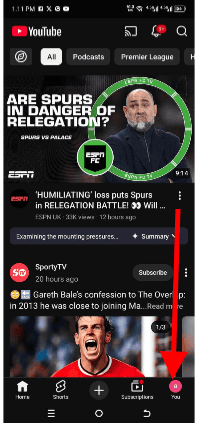
- Tap on your profile picture again at the top of the page.
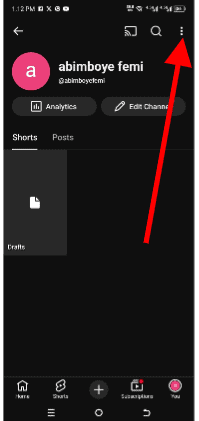
- Click on the three vertical dots at the top-right corner of the screen;
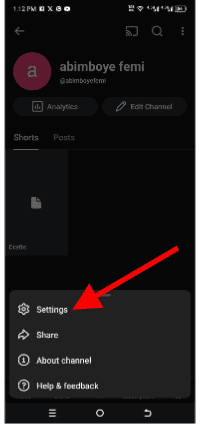
- Tap Settings and click on General.
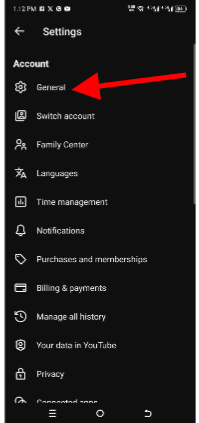
- Toggle Restricted Mode to ON.
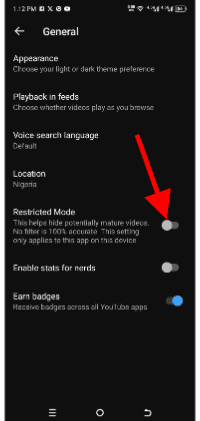
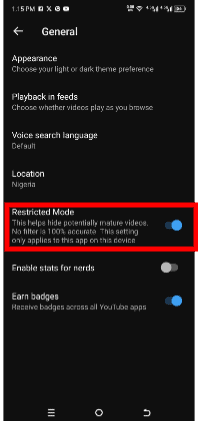


Restricted Mode is particularly useful for parents or anyone who wants to avoid explicit content without manually blocking individual channels. However, it’s not foolproof; some inappropriate content may still slip through YouTube’s automated filters.
How to block a YouTube channel using Browser extensions
If YouTube’s native features don’t go far enough for you, browser extensions offer significantly more control. That said, it’s important to note that Browser extensions only work on the device and browser where they’re installed. If you switch to a different browser or use the YouTube mobile app, your block list won’t carry over unless you manually recreate it.
BlockTube (Chrome Extension)

BlockTube is one of the most robust YouTube channel blockers available. Unlike YouTube’s “Don’t recommend channel” feature, BlockTube removes channels from:
- Your home feed
- Search results
- Sidebar recommendations
- Everywhere across YouTube
How to install and use BlockTube:
- Install the BlockTube extension from the Chrome Web Store.
- Click the Extensions icon in Chrome’s top bar.
- Select BlockTube from the list to open its settings.
- Under Filter options, click “Channel name.”
- In the empty input box, type the exact name of the channel you want to block.
- Click “Save.”
Another method is to add a “Block channel” option directly to YouTube after installing BlockTube. Just click the three dots (⋮) next to any video from a channel you want to block and select “Block channel.” BlockTube handles the rest automatically.
Channel Blocker (Chrome Extension)

According to its Chrome Web Store listing, Channel Blocker allows you to:
- Block entire channels with one click
- Use regular expressions for advanced filtering
- Block specific keywords in video titles
- Hide comments from blocked users
This extension is open-source and collects no user information, making it a privacy-friendly option.
How to unblock YouTube channels
After blocking a channel on YouTube, you can reverse your action anytime you so wish. Again, to unblock a channel on YouTube, the process is dependent on the type of blocking used.
Unblock channels from “Don’t Recommend Channel.”
Unfortunately, YouTube does not provide a list of individually blocked channels when using the “Don’t recommend channel” feature.
Unless you select “Undo” immediately after blocking, you cannot selectively unblock individual channels. Instead, you must clear your entire recommendation feedback history, which unblocks everything at once.
Steps to clear all blocked channels:
- Go to Google My Activity.
- Sign in to your Google Account if prompted.
- On the left menu, click “Other activity.”
- Scroll down to YouTube “Not interested” feedback.
- Click “Delete.”
- Confirm the deletion.
This removes all “Not interested” and “Don’t recommend channel” feedback you’ve ever submitted. YouTube will start recommending previously hidden channels again.
Unblock channels from Parental controls
For supervised children’s accounts, unblocking is straightforward:
- Sign in to YouTube using your linked parent account.
- Go to the channel page you previously blocked.
- Click or tap “Block channel for kids” (the same option used to block).
- Tap “CONTINUE” if prompted.
- Tap “UNBLOCK” next to your child’s name.
- The button changes back to “BLOCK.”
FAQ
Will the channel owner know I blocked them?
No, YouTube does not notify channel owners when you use “Don’t recommend channel” or hide them from your feed. Blocking is a private action on your end.
Does blocking a channel remove all its videos from YouTube?
No. Blocking only affects what you see. The channel remains fully visible to everyone else. Their videos still appear in public search results, trending pages, and other users’ feeds.
Can I block channels without signing in?
No, you must be signed in to your YouTube or Google Account to block a channel. Blocking is tied to your account, not your device.
To wrap up
So, can you block YouTube channels? Yes, but the method and effectiveness depend entirely on your specific needs. For most users, YouTube’s “Don’t recommend channel” feature provides a quick, easy way to clean up their feed and stop seeing content from creators they don’t enjoy.
For parents managing children’s accounts, parental controls offer robust, true blocking that works across YouTube and YouTube Kids. And for users who want complete, universal channel removal across search results and every part of the platform, browser extensions like BlockTube fill the gap where YouTube’s native features fall short.