



Facebook was built on connection, and comments are at the centre of that. They let friends react, followers engage, and strangers weigh in on everything from vacation photos to business announcements. But as the platform has grown into a space for public discourse, brand marketing, and community management, the comment section has also become a hotspot for trolls, spam, misinformation, and outright harassment. At some point, the ability to post without inviting chaos stops being optional and starts feeling necessary.
Knowing how to disable comments on Facebook posts is one of the most practical skills any Facebook user or page manager can have. Whether you are sharing something deeply personal, posting a sensitive announcement, or simply trying to prevent a business post from being hijacked by negativity, Facebook gives you tools to control or restrict commenting.

In this piece, we will walk you through every available method clearly and completely. You will learn how to turn off comments on Facebook posts on both desktop and mobile, how to manage commenting on Facebook Pages and Groups, how to use keyword filters, and what to do when you need something stronger than Facebook’s built-in tools.
Can I disable comments on Facebook posts?
Yes, you can disable comments on Facebook posts, but it depends on where you’re posting. Facebook does give you tools to control or restrict commenting. These controls work slightly differently depending on your account type: personal profile, business page, or group but the core logic is the same: you decide who gets to speak in your space.
No, Facebook does not offer a single button that says “Disable all comments” for personal profiles. Instead, it gives you audience controls that limit who can comment. Choosing “Only Me” under comment settings effectively disables comments for everyone else. For Facebook Pages and Groups, the options are more direct. With that context in mind, here is how each method works.
How to turn off comments on Facebook posts
Facebook does not offer a universal “disable comments” button for every type of post, but there are several ways to control who can comment. On personal profiles, you can limit comments on public posts to friends or mentioned profiles only. On Facebook Pages, you can moderate, hide, or filter comments using built-in moderation tools. In Facebook Groups, admins have the option to completely turn off commenting on specific posts.
Here is a detailed step-by-step process of using each method:
Method 1: Disable comments on a personal profile post (Mobile App)
This is the most commonly searched method, and it is straightforward once you know where to look. Note that this feature only works for posts set to Public visibility. If your post is set to “Friends,” the commenting control option may not appear.
For an existing post:
- Open the Facebook app on your phone.
- Navigate to your profile and find the post you want to restrict.
- Tap the three dots (•••) in the top-right corner of the post.
- Scroll to and click on ‘Edit Privacy.’
- Select “Who can comment on your post?”
- You will see five options: Public, Friends, Friends except…, Specific friends, and Only me.
- Select “Specific friends.”
- This is the closest option to fully turning off comments. Only accounts you specifically tag in the post will be able to comment.
- Tap Save to complete the process.
For a new post before publishing:
- Create your post as usual.
- Click on the ‘next’ button at the top right corner of the screen.

- Select “Who can comment.”

- Choose your preferred restriction.

- Publish your post.
Method 2: Disable comments on a personal profile post (Desktop/Browser)
The desktop process follows a similar path with slightly different navigation:
- Go to Facebook.com and log in.
- Navigate to your profile and locate the post.
- Click the three dots (•••) in the top-right corner of the post.
- Click “Edit Privacy” or “Who can comment on your post?” depending on your interface version.
- Select “Profiles and Pages you mention” to effectively silence the comments section.
- Click Save or Done.
Pro tip: If you do not see the “Who can comment” option, check that your post’s audience is set to “Public.” Facebook only shows this commenting control for public posts.
Method 3: Turn off comments on a Facebook page post
Facebook Page admins have more direct control than personal account holders. Here is how to disable comments on a Facebook Page post:
For an existing page post:
- Go to your Facebook Page and find the post.
- Click the three dots (•••) in the top-right corner of the post.

- Click “Who can comment on your post?”
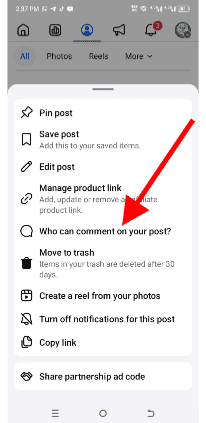
- Pick one from the options displayed except ‘Public.’
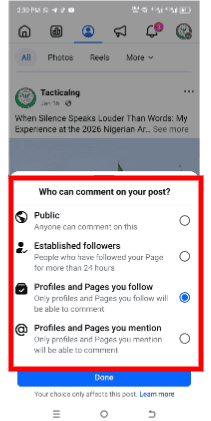
- Once done, commenting becomes regulated.


Method 4: Turn off comments on a Facebook group post
Group admins and post authors within a group have a direct “Turn off commenting” option which is the most straightforward of all the methods available on Facebook.
- Go to the group and find the post.
- Tap or click the three dots (•••) on the post.
- Select “Turn off commenting.”
This immediately prevents any new comments from being added. Existing comments remain visible. To reverse it, follow the same steps and select “Turn on commenting.”
Method 5: Use keyword filters to restrict comments
If you do not want to completely block comments but want to filter out the harmful ones automatically, Facebook’s keyword filter is a powerful tool that most users overlook.
- Click your profile picture in the top-right corner of Facebook.
- Go to Settings & Privacy → Settings.
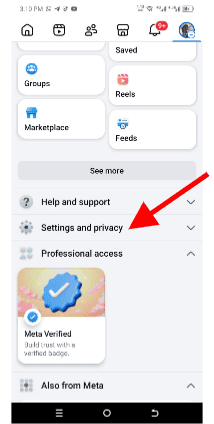
- Under Audience and Visibility, click Followers and Public Content.
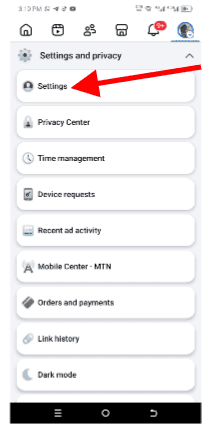
- scroll down and click on the “Blocklist Filter” option.
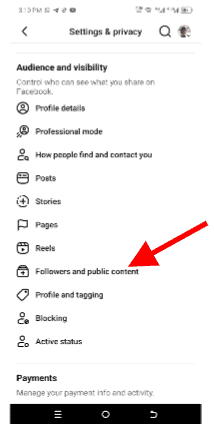
- Enter in a series of words, phrases you want to block separated by a comma. The limit is set at a thousand keywords.
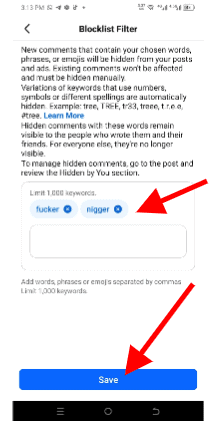
- Click Save.


This works passively in the background, hiding any comments that match your filters without you having to review each one manually. It is particularly useful for business pages dealing with high comment volumes.
Method 6: Block specific people from commenting
Sometimes the problem is not comments in general, but one or two specific accounts causing issues. Facebook lets you block individuals entirely, which also prevents them from commenting on your posts.
- Click your profile picture and go to Settings & Privacy.
- Under Audience and Visibility, select Blocking.
- Click Edit next to “Block users.”
- Search for the person’s name or profile and block them.
Once blocked, that person can no longer see your posts, send you messages, or comment on anything you share on your profile, at least.
Can I disable comments on Facebook ads?
No, you cannot completely disable comments on Facebook ads. When you run ads through Meta Ads Manager, commenting is enabled by default and there is no built-in option to turn it off entirely. However, you can control and manage comments in several ways:
- Use page moderation tools (Settings → General → Page Moderation) to auto-hide comments with specific words.
- Manually hide comments by clicking the three dots next to individual ad comments and selecting “Hide.”
- Delete comments to permanently remove inappropriate comments.
- Block users to prevent specific users from interacting with your page or ads.
- Use third-party moderation tools like Statusbrew, which can automatically hide or delete comments based on keywords, sentiment, or timing, including during weekends when you are offline.
Note: Hiding a comment removes it from public view, but the original commenter and their friends can still see it. Deleting removes it entirely.
What happens when you disable Facebook comments?
Here are a few things worth knowing about the effect of disabling comments:
1. Does Facebook notify users?
No. Facebook does not send a notification to users when you disable comments on a post or hide their comments. If a comment is hidden, the commenter and their friends can still see it — but the general public cannot.
2. Does it affect post reach?
Potentially, yes. Posts with high engagement (including comments) tend to perform better in Facebook’s algorithm. Disabling comments may reduce your overall engagement metrics, which can indirectly affect organic reach. This is a real trade-off to consider, especially for businesses.
3. Can you re-enable comments?
Yes, always. Every method described in this guide is fully reversible. Follow the same steps and select the “turn on” or open-audience option to restore comments.
3. Do existing comments disappear?
When you disable comments using the “Who can comment” method on a personal post, existing comments are hidden from public view but not deleted. When you use “Turn off commenting” on a group or page post, existing comments remain visible.
FAQ
Can I disable comments on all my Facebook posts at once?
No. Facebook does not currently offer a global setting to turn off comments on all posts simultaneously. You need to manage each post individually or use a third-party moderation tool for bulk management.
Why is the “Who can comment” option not showing up?
This option only appears on posts set to Public visibility. If your post is set to “Friends” or a narrower audience, the commenting control option will not be available.
Can I disable comments on someone else’s post?
No. You can only control comments on posts you have created yourself or posts within a group where you are an admin.
Can I disable comments on Facebook from a computer without using the app?
Yes. All the desktop/browser steps listed in this guide work without needing the mobile app.
Final thought
Managing who can comment on your Facebook posts is not about silencing conversation. It is about protecting your space, your audience, and your peace of mind. Facebook’s built-in tools give you reasonable control, from restricting comments to specific audiences on personal posts to directly turning off commenting on Pages and Groups. Combine these with keyword filters and, where necessary, third-party moderation tools, and you have a comprehensive system for managing interactions on your terms.