

Facebook has over three billion monthly active users, and yet most of them are using only a fraction of what the platform actually offers. The popular features like posting, commenting, reacting, and creating groups are just the surface layer. Underneath, Facebook is packed with tools, settings, and capabilities that can meaningfully improve how you use the platform, protect your privacy, and save you time. This is where hidden Facebook features become genuinely useful.
The problem is that these features are buried in menus, tucked into settings, or so subtly placed that the average user scrolls past them daily without ever noticing they exist. These are legitimate, built-in tools that Facebook quietly rolled out or kept at arm’s length from its main interface. Some improve your experience as a viewer, while others are powerful privacy controls that limit how much Facebook and third-party advertisers know about you.
This guide covers the most valuable hidden Facebook features most users never find, organized by category. We cover everything from privacy to security, feed control, communication, and account management. Each feature includes exactly where to find it and why it matters.
From privacy and security features that protect your data, to feed and content control features that shape what you see, Facebook offers more control than it appears on the surface. There are also communication features that refine how you interact with others, and account management features that help you manage your profile long-term.
Here is a detailed breakdown of the most useful hidden Facebook features most users never find:
A. Privacy and security features
These are hidden Facebook tools that help protect your personal data and control who sees your information. They include settings for switching off activity, 2FA, active sessions, and profile locks. Most users overlook them, yet they quietly give you more control over your account safety and digital footprint.
1. Off-Facebook activity
One of the most powerful and least-used privacy tools on Facebook is Off-Facebook Activity. Most people have no idea it exists. Facebook collects data about your behavior on other websites and apps that use Meta’s tracking pixels or login tools. This data flows back to your Facebook account and shapes the ads you see, even when you are not on Facebook at all.
Off-Facebook Activity lets you see exactly which third-party apps and websites have shared your data with Facebook, clear that history, and disconnect it going forward.
To find this feature, follow these steps:
- Tap the menu icon (three lines or your profile picture)
- Click on Settings & Privacy,

- Then tap on Settings before clicking on Accounts Center


- Next, scroll to and click on ‘Your Information and Permissions’ then ‘Your Activity Off Meta Technologies’

- From here, you can tap “Clear Previous Activity” to remove existing data

- On the next page, click on ‘Clear data’ again.

- You will be prompted with the potential consequences of your action. Read this carefully before selecting ‘Clear previous activity’ to proceed.

- After clicking, a pop-up window will show ‘Previous activity data cleared.’
It’s important to note that turning this off will disable Facebook Login for any apps using it, so you will need to create separate logins for those services.
2. Two-factor authentication
Two-factor authentication (2FA) is one of the most effective protections against account takeovers, and yet a surprisingly large portion of Facebook’s users have never enabled it. With 2FA, even if someone has your password, they cannot log in without a second code sent to your phone or generated by an authenticator app.
Importantly, you do not need to provide your phone number to use 2FA. Using an authenticator app such as Google Authenticator or Duo Mobile is both more private and more secure than SMS.
To find this feature, follow these steps:
- Click on the Menu icon and tap on Settings & Privacy
- Under Settings, scroll to and click on Accounts Center, then Password and Security

- On the next page, select Two-Factor Authentication.

- Select the account you wish to activate the 2FA on.
- Next, you will be prompted to enter the verification code sent to your account’s email address.
- On the next page, choose how you want to protect your account, either via SMS/WhatsApp or security keys.
- If you picked the SMS, you will be required to provide a phone number.
- Enter the code sent to the phone number provided.
- Enter your account password to continue and activate the 2FA.
3. Active sessions
Many users do not realize Facebook keeps a live log of every device and location currently signed into their account. If you have ever logged in on a friend’s phone, a hotel computer, or an old device you no longer use, there is a good chance those sessions are still active.
To find this feature, follow these steps:
- Go to the Menu and click on Settings & Privacy
- Under Settings, click on Accounts Center

- Next, tap on Password and Security and select Where You’re Logged In.


You will see a list of all active sessions, including device type, operating system, and approximate location. Tap any session you do not recognize and select “Log Out.”


Another plus of this feature is that you can also enable login alerts. Do this by simply clicking on “Login Alerts” and turning on in-app notifications and email alerts so Facebook notifies you anytime a new device logs into your account.
4. Block your profile from Google search
By default, Facebook allows your profile to appear in Google and other search engine results. This means anyone who types your name into Google can potentially find your profile, even if they are not on Facebook. If you prefer not to be searchable this way, there is a toggle to disable it.
To find this feature, follow these steps:
- Open Menu
- Tap Settings & Privacy
- Select Settings
- Go to Privacy

- Click How People Find and Contact You

- Find the option: “Do you want search engines outside of Facebook to link to your profile?”

- It’s automatically tuned on, but you can toggle it to the “off” position.


5. Profile lock
Profile Lock is available to all users worldwide and goes beyond standard privacy settings. When activated, your full-size profile and cover photos are visible only to friends, not to people who have not connected with you. It limits what strangers can see, even on your public profile. Posts, photos, and listed information are restricted.
To find this feature, follow these steps:
- Go to your profile
- Tap the three dots (•••) below your cover photo
- Select “Lock Profile”
This is particularly useful if you receive unwanted connection requests or prefer to keep your presence low-profile without going fully private.
6. Camera roll sharing suggestions
A relatively new feature, Facebook’s camera roll sharing suggestions quietly scans photos in your phone’s gallery, including images you have never uploaded, to suggest post ideas. While framed as a convenience, this means Facebook can access private photos, sensitive documents, or anything else sitting in your camera roll.
To find this feature, follow these steps:
- Open the Facebook app
- Tap Menu
- Go to Settings & Privacy and click on Settings
- Scroll to Camera Roll Sharing Suggestions
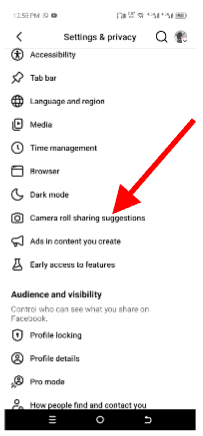
- Toggle all switches off


B. Feed and content control features
These features shape what you see on your timeline. They allow you to prioritize posts, select types of feed, snooze accounts, and hide like counts. Many users miss these options, even though they are key to reducing clutter and making your feed more relevant to your interests.
7. Multiple Feeds
Most users do not know Facebook offers multiple distinct feed views beyond the default News Feed. You can switch between a Friends-only feed that blocks out Group and Pages posts. Alternatively, there is also a Groups only feed that shows only content from groups you belong to. Finally, there is a Pages-only feed that displays only posts from Pages you follow, and a Favorites feed, which is a curated VIP list of the accounts you prioritize.
To find this feature, follow these steps:
- On mobile, tap the Menu icon and click on Feeds
- On the desktop, find Feeds in the left sidebar
- Choose from “All, Favorites, Friends, Groups, or Pages.”
The Favorites feed is particularly powerful. You can manually select specific friends and Pages to appear here, creating a filtered, distraction-free reading experience. To add someone to Favorites, visit their profile and tap the Following button, and select “Add to Favorites.”
8. Snooze
The Snooze feature is one of Facebook’s most thoughtful yet underused tools. If someone in your network is temporarily flooding your feed, you can snooze them for exactly 30 days. They will not be notified, you will not lose the friendship, and their posts automatically return to your feed after the month is up.
To find this feature, follow these steps:
- Tap the three dots (•••) at the top right of any post from the person
- Select “Snooze [Name] for 30 days.”
9. Your time on Facebook
Facebook has a built-in dashboard that shows exactly how much time you spend on the platform each day. It also lets you set a daily time limit and schedule “Quiet Mode,” which is a window of time during which all notifications are silenced. This feature is buried deep enough that most users have never seen it.
To find this feature, follow these steps:
- Tap Menu
- Go to Settings & Privacy and click on Settings
- On the next page, select Preferences, then Your Time on Facebook, and click on “See Your Time.”
From this screen, you can set a daily reminder that fires once you reach your chosen time limit and schedule Quiet Mode to automatically silence notifications during specific hours, such as overnight or during work hours.
10. Hide like counts on posts
If seeing the number of reactions on posts affects how you engage with content or if you prefer your posts not to display public counts, Facebook gives you control over both.
To find this feature, follow these steps:
- Tap Menu
- Go to Settings & Privacy and click on Settings
- Select Preferences and scroll to Reaction Preferences
- Choose to hide reaction counts on your posts, others’ posts, or both
11. Save posts for later
Facebook’s Save feature lets you bookmark any post, article, video, or link to return to later. Content saved on one device is accessible on all devices you use to access Facebook. You can also organize saved items into collections or folders, which is useful for separating recipes from articles from videos.
To find this feature, follow these steps:
- Tap the three dots (•••) on any post
- Select “Save Post” or “Save Link”
- To find saved items:
- Go to the Menu and click on Saved (or left sidebar on desktop)
12. Manage past posts in bulk with the activity log
Your Activity Log is a comprehensive, private log of everything you have ever done on Facebook. This includes every post, like, comment, reaction, video watched, and search performed. Aside from being a personal audit trail, Activity Log lets you filter your history, hide or delete old posts, and clear your search history.
To find this feature, follow these steps:
- Click your profile picture
- Go to Settings & Privacy and click on Activity Log
- If you are using a mobile device, tap your profile picture and scroll to Activity Log
To delete your entire search history in one step, go to Activity Log, then click on the search history before tapping on “Clear Searches” at the top.
C. Communication features
These are lesser-known tools that improve how you interact with others on Facebook. They include messaging using nicknames, chat controls, and conversation privacy settings. Hidden in the settings menu, they help you avoid spam, control who can reach you, and manage your messaging experience better.
13. Secret conversations in Messenger
Most people use Facebook Messenger without realizing it offers optional end-to-end encryption through “Secret Conversations.” Standard Messenger messages are stored on Meta’s servers and are not encrypted end-to-end. Secret Conversations are encrypted, stored only on participating devices, and can be set to self-destruct after a time you define. This time frame can be from anywhere between five seconds to 24 hours.
To find this feature, follow these steps:
-
- Open Messenger
- Tap any chat
- Tap the information icon
- Select “Secret Conversation”
- Alternative method:
-
- Start a new message
- Tap the lock icon in the top right while composing
Secret Conversations work on mobile only and cannot be started from the web version of Messenger. They are ideal for sharing sensitive information like passwords, addresses, or personal details you would not want stored indefinitely.
14. Group video calls for up to 50 people
Messenger supports group video calls with up to 50 participants, which is a capability most users associate with Zoom or Google Meet, not Facebook. The feature is free, requires no downloads beyond the Messenger app, and includes filters and effects.
To find this feature, follow these steps:
-
- Open Messenger
- Tap any group conversation
- Tap the video camera icon in the top right
- For a new group call:
-
- Start a new message
- Add participants
- Tap the video icon.
15. Post in groups using a nickname
Facebook now allows users to post and comment in Facebook Groups using a nickname rather than their real name. This is useful for joining conversations in communities where you prefer not to share your full identity while still contributing meaningfully.
To find this feature, follow these steps:
- Go to a specific group
- Tap your name in the post composer
- Check for the option to edit your display name for that group.
D. Account management features
These features focus on how you control and maintain your Facebook account. They include options like legacy contact, your ad preference, and data access tools. Often buried deep in settings, they are essential for long-term account control but rarely explored by everyday users.
16. Download a copy of all your Facebook data
Facebook holds an extensive archive of everything you have ever posted, liked, messaged, and done on the platform. With such extensive data collection, the platform allows you to download a complete copy of it. This includes every message you have ever sent, every photo uploaded, every search performed, and your full ad targeting profile.
To find this feature, follow these steps:
- Tap Menu
- Select Settings & Privacy
- Tap Settings
- Go to Accounts Center

- Select Your Information and Permissions

- Tap “Export your Information” to begin.

- On the next page, click on “Create export.”

- Choose the profile for which you want to export and select where to export.


- After selecting where to export, confirm the process to download your data.

Select the data you want, choose a date range and format (HTML or JSON), and Facebook will prepare the archive. You will receive a notification when it is ready to download. This is also useful as a backup before deactivating or deleting your account.
17. Legacy contact
This is one of the most meaningful but rarely used features on Facebook. A Legacy Contact is someone you designate to manage your profile after your death. They can pin a tribute post, update your profile photo, and respond to new friend requests, but they cannot log in as you or read your private messages.
If you prefer your account to be permanently deleted rather than memorialized, you can select that option instead.
To find this feature, follow these steps:
- Tap Menu
- Select Settings & Privacy
- Tap Settings
- Scroll down to Special Use
- Tap Memorialization Settings.

- Choose between “Memorialize profile” or “Delete after death.”

- Once selected, click on Next.

- Pick a legacy contact by entering the name of the person in the search box provided.

- After picking a friend, grant them the level of permission you want and click save to finalize the process.

18. Your Ad preferences
Facebook’s ad targeting is built on an enormous profile of your interests, behaviors, demographics, and online activity. Most users have never looked at this profile. Going into your ad preferences reveals every interest category Facebook has assigned to you and lets you remove the ones that are inaccurate or that you do not want used for targeting.
To find this feature, follow these steps:
-
- Tap Menu
- Select Settings & Privacy
- Tap Settings
- Scroll down and select Ads
- Tap Ad Preferences
- Browse and adjust:
- Interest Categories
- Advertisers You’ve Interacted With
- Audience-Based Advertising
You can also turn off interest-based ads entirely under “Data from partners” and “Categories used to reach you.” This prevents advertisers from targeting you based on your school, job title, relationship status, and other profile information.
| Feature | Path |
| Off-Facebook Activity | Menu → Settings → Accounts Center → Your Activity Off Meta |
| Two-Factor Authentication | Settings → Accounts Center → Password and Security → 2FA |
| Active Sessions | Settings → Accounts Center → Where You’re Logged In |
| Block from Google Search | Settings → Privacy → How People Find You |
| Multiple Feeds | Menu → Feeds (Friends / Groups / Pages / Favorites) |
| Snooze a Friend | Three dots on post → Snooze for 30 days |
| Screen Time + Quiet Mode | Settings → Preferences → Your Time on Facebook |
| Hide Like Counts | Settings → Preferences → Reaction Preferences |
| Save Posts | Three dots on post → Save Post |
| Activity Log | Profile → Settings & Privacy → Activity Log |
| Secret Conversations | Messenger → chat info icon → Secret Conversation |
| Legacy Contact | Settings → Special Use → Memorialization Settings |
| Ad Preferences | Settings → Ads → Ad Preferences |
| Download Your Data | Settings → Accounts Center → Download Your Information |
Final thoughts
Facebook has quietly built an impressive set of tools that sit beneath the surface of the interface most people use every day. The challenge has always been discoverability, as these features are not promoted, and they are not obvious.
The features covered here are a mix of genuinely useful tools and important protections that affect your privacy and security in ways most users never realize. Spending 20 to 30 minutes enabling the protections and configuring the comfort features in this guide will meaningfully change how Facebook works for you.