

Every profile, page, and group on Facebook has a unique web address that makes it directly accessible from anywhere on the internet. This address is what separates your profile from the billions of others on the platform, and knowing where to find it is more useful than most people realise.
Knowing how to locate your Facebook URL is something users need when sharing their profile for networking, embedding it in an email signature, linking it on a website, or handing it to a client or employer. A typical Facebook profile link looks like this: https://www.facebook.com/yourusername, where “yourusername” is the custom name associated with your account. If you have not set a custom username, Facebook assigns a default numeric ID instead, which looks far less professional and is harder to share.
This guide covers every method for finding your Facebook profile link on desktop, mobile browser, and the Facebook app, covering personal profiles, business pages, and groups. Beyond just locating the URL, you will also learn how to customize it, why it matters for your online presence, and what rules Facebook applies when you want to create or change one.
What does a Facebook URL look like?
Facebook URLs follow a consistent structure:
- Personal profile with a custom username: https://www.facebook.com/pushbioai
- Personal profile without a custom username: https://www.facebook.com/profile.php?id=100087654321
- Business page: https://www.facebook.com/YourBusinessName
- Group: https://www.facebook.com/groups/yourgroupname
The cleaner, username-based format is called a custom URL, and it is what you want to aim for. If yours still shows a long string of numbers, the last section of this guide explains how to fix that.
How to find my Facebook profile URL easily
Finding your Facebook profile URL is simple once you know where to look. You can copy it directly from your browser address bar, use the profile settings, or access it through the Share profile option. The steps may vary slightly depending on whether you are using a desktop computer or the Facebook mobile app.
Below is a detailed approach for each step:
Method 1: Find your Facebook profile URL on desktop (Browser)
This is the fastest method if you are on a laptop or computer.
- Open your browser and go to facebook.com.
- Log in to your account.
- Click your profile picture or name in the top-right corner of the homepage to go to your profile.
- Look at the address bar at the top of your browser window.
- The URL displayed there, beginning with https://www.facebook.com/, is your Facebook profile link.
- Click inside the address bar, select the entire URL, and press Ctrl + C (or Cmd + C on Mac) to copy it.
That is your direct Facebook profile URL. You can now paste it anywhere you need it. If the URL in your address bar shows a string of numbers rather than a username (e.g., facebook.com/profile.php?id=100012345678), it means you have not yet set a custom username.
Method 2: Find your Facebook URL on the mobile app
The Facebook mobile app does not show your URL in the address bar the way a browser does, so this process is slightly different.
- Open the Facebook app on your Android or iOS device.
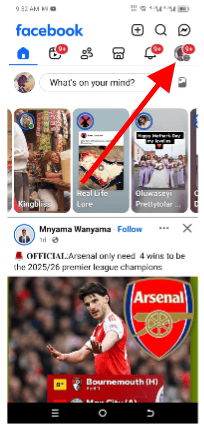
- Tap your profile picture in the top-left corner (or tap the three horizontal lines menu, then tap your name) to go to your profile.
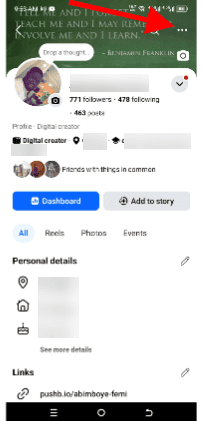
- Once on your profile page, tap the three dots (•••).
- Scroll down to the “Your Profile Link” section.
- Click on the “copy link” button.
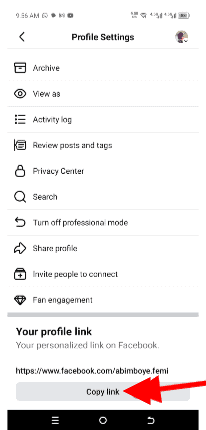
- The link is now copied to your clipboard and ready to paste.


On some versions of the app, you may instead see a “Share” option that includes a “Copy Link” function. Either path gives you the same result, which is your full Facebook profile URL.
Method 3: Find your Facebook URL on a mobile browser
If you prefer using a browser on your phone rather than the app, here is how to locate your Facebook profile link:
- Open your mobile browser (Chrome, Safari, Firefox, etc.) and navigate to facebook.com.
- Log in if prompted.
- Tap the three horizontal lines (hamburger menu) in the top-right corner.
- Tap your name or profile picture to visit your profile.
- The URL in the browser’s address bar is your Facebook profile link.
- Tap and hold the address bar text to select it, then copy it.
This method gives you the same URL you would see on a desktop browser, making it ideal when you need to copy and share the link directly.
Method 4: Find your Facebook page URL (Business page)
If you manage a Facebook Business Page, finding its URL is equally straightforward and important for marketing, directory listings, and ad campaigns.
On desktop:
- Log in to Facebook and navigate to your Business Page by clicking on “Pages” in the left-hand sidebar.
- Once on the page, look at the browser address bar.
- The URL there is your page’s direct link, typically formatted as https://www.facebook.com/YourPageName.
- Copy it from the address bar.
On mobile app:
- Open the Facebook app and go to your Business Page.
- Tap the three dots (•••) below the page’s cover photo.
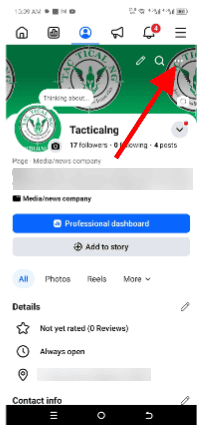
- Scroll down and tap “Copy Link to Page.”
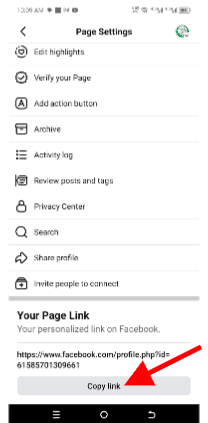
- The page URL is now in your clipboard.


For a page you do not manage: Simply visit the page and copy the URL from your browser’s address bar. There is no need to follow any extra steps.
Method 5: Find a Facebook group URL
If you run or belong to a Facebook Group and need its link to invite new members or share it externally, here is how to find it:
On desktop:
- Navigate to the group via the Groups section in the left sidebar.
- Copy the URL directly from your browser’s address bar.
On mobile app:
- Open the group.
- Tap the shield icon or the three dots at the top of the group page.
- Select “Share Group” and choose “Copy Link.”
How to Find Another Person’s Facebook URL
Sometimes you need to share someone else’s Facebook profile. In such an instance, here is what to do:
- Use the Facebook search bar to look up the person or page by name.
- Click or tap their profile from the search results.
- On desktop, copy the URL from the browser’s address bar.
- On mobile app, tap the three dots (•••) on their profile.
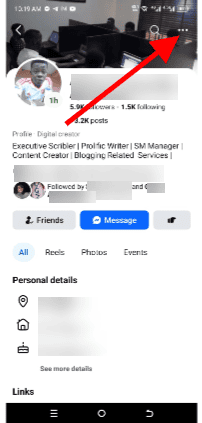
- Select “Copy Link” or “Copy Profile Link.”
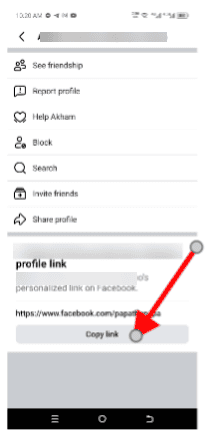


However, for private profiles, the link may only be accessible to people who are already friends with that person.
How to customize your Facebook profile URL
If your Facebook URL currently shows a numeric ID instead of a clean username, it is worth taking a few minutes to fix that. A custom Facebook URL is easier to remember, looks more professional, and is better for search visibility.
On desktop:
- Click your profile picture at the top-right and go to Settings & Privacy → Settings.
- Click “Personal Details” under the Meta Account Centre section.
- Select your Facebook profile from the “Profiles” list.
- Click “Username.”
- Type in your desired username and check if it is available.
- Click Save to confirm.
On mobile (via Facebook Messenger app):
- Open Facebook Messenger and tap your profile picture.
- Go to Settings → Account Centre → Personal Details.
- Tap “Profiles” and select your Facebook profile.
- Tap “Username,” enter your new username, and tap Save.
Your Facebook profile link will immediately update to https://www.facebook.com/yournewusername.
Why a custom Facebook URL matters
Your Facebook link is more than a technical address. It is an extension of your brand and online identity, making it an important aspect of your presence on the platform.
Here is why getting it right matters:
1. It strengthens your personal or brand identity
Your Facebook URL is more than just a web address. It becomes part of your online identity. When you use a custom username such as facebook.com/YourName or facebook.com/YourBusinessName, it reinforces who you are and what your page represents. This is important for personal profiles, business pages, and even community groups. A branded URL helps people recognize and remember you faster.
2. It makes your profile, page, or group easier to find
A clear and simple Facebook URL helps people locate your account quickly. Instead of a long link filled with random numbers, a custom URL clearly shows the name of the person, brand, or community behind it. This makes it easier for people to search and tag the correct page or profile on Facebook. When usernames match your brand or group name, Facebook’s search system can identify them more easily, which improves discoverability for audiences looking for your content.
3. It improves search engine visibility
Search engines like Google index social media pages, including Facebook profiles and business pages. A clean URL that includes relevant keywords or a brand name can help your page appear in search results when people look for related topics or businesses. While a Facebook URL alone does not guarantee top rankings, it provides useful signals that search engines can understand.
4. It makes your link easier to share
Short and readable URLs are much easier to share online and offline. For example, it is simpler to tell someone to visit facebook.com/YourBrand than to type a long address filled with numbers. This matters when sharing links in emails, presentations, marketing materials, or printed items like business cards and posters. Clean URLs are also easier to remember and copy. As a result, more people are likely to visit your Facebook page, group, or personal profile.
5. It builds trust and professional credibility
A professional-looking URL signals that your page is legitimate and well-managed. When people see a branded Facebook link, they are more likely to trust it than a random address with numbers and symbols. This is especially important for business pages and public groups where credibility matters. A personalized URL shows that the owner has taken time to set up the page properly and present it professionally, which can increase confidence among followers and potential customers.
6. It protects your brand or name online
Claiming your Facebook username early helps protect your identity or brand name from being taken by someone else. With billions of users on Facebook, others can claim a similar name before you do. Securing your custom URL ensures that your brand, business, or community name is reserved for your official profile, page, or group. This reduces confusion among users and prevents issues like impersonation or name squatting.
7. It keeps your marketing and social media consistent
Consistency is important in digital marketing. When your Facebook URL matches your website domain or other social media handles, it creates a unified online presence. For example, if your business uses the same name across Facebook, Instagram, and your website, people can easily recognize and remember your brand. This alignment strengthens brand recognition and makes your marketing campaigns clearer and more effective across different channels.
FAQ
Why can’t I find the “Copy Link” option on my profile?
Make sure you are navigating to your actual profile page and not the homepage. The three-dot menu on your profile page contains the “Copy link to profile” option. If you still cannot find it, try updating the Facebook app to the latest version.
Does copying my Facebook URL require me to be logged in?
You need to be logged in to access your own profile settings and copy your link via the app. However, anyone with your URL can view your profile based on your privacy settings without needing to log in if your profile is set to public.
What if my Facebook username is already taken?
Try adding a number, middle initial, or a period variation (e.g., johnsmith24, j.smith, john.r.smith). Keep it close to your real name or brand name for maximum recognizability.
Can I change my Facebook URL more than once?
Yes, but Facebook limits changes to once every 60 days. Plan your username carefully before committing, especially for business pages where links may already be circulating.
In the end
Finding your Facebook profile URL takes less than a minute once you know where to look. Whether you are on a desktop browser, a mobile browser, or the Facebook app, the steps are straightforward, and the same logic applies to business pages and groups. The bigger win is taking it a step further and setting a clean, memorable custom username if you have not already. It makes your profile easier to share, easier to find, and far more professional.